
How to translate Swift Radio into any language
When you fork Swift Radio, the app should carry your station's name and speak your listeners' language. In v3, I moved the interface text into an Xcode String Catalog so you can change it without editing the views.
Most of the work happens in two places:
- Localizable.xcstrings: interface text, including screen titles, menu labels, About text, and error messages.
- Config.swift: shared settings such as your contact email, website, and feedback URL.
Station names and descriptions come from stations.json. Changing the app's language doesn't translate that station data.
Changing the default English text
Open SwiftRadio/Localizable.xcstrings in Xcode and select English. Each entry has a key, such as stations.title, and a value, such as Swift Radio. Edit the value to change what appears in the app.
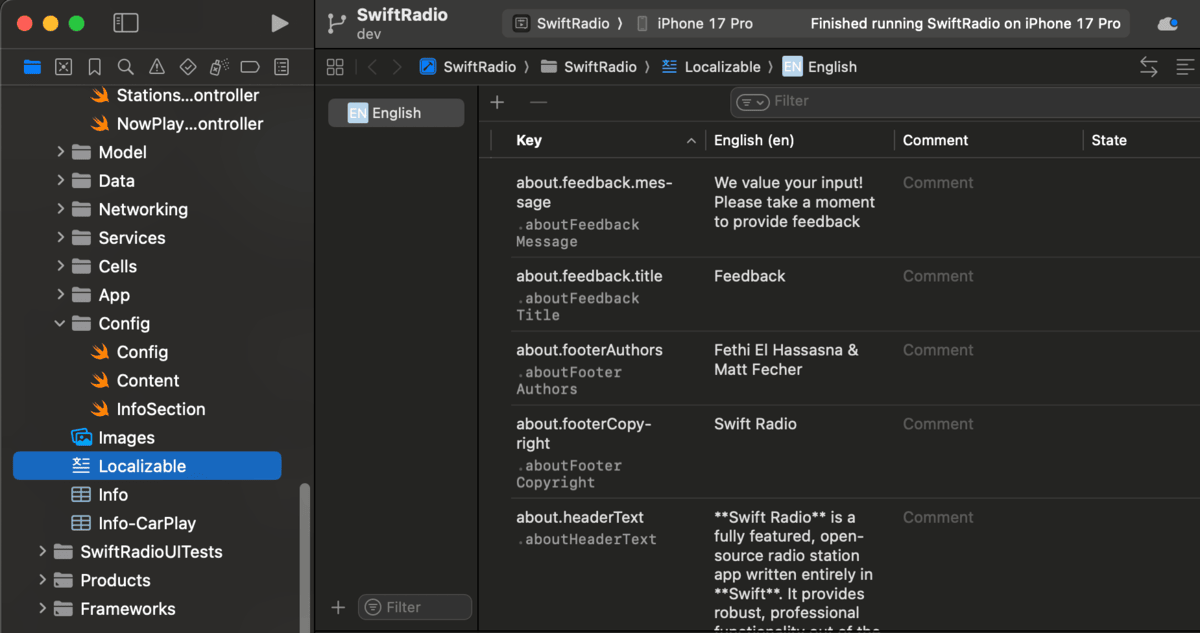
String Catalog editor with keys and English values
Use the filter bar to find a group of strings: stations, about, or features, for example.
Common strings to customize:
| Key | Default Value | Description |
|---|---|---|
stations.title | Swift Radio | Main title at the top of the station list |
about.title | About Swift Radio | About screen title |
about.headerText | Swift Radio is a fully featured... | About screen description paragraph |
about.shareText | Check out Swift Radio! | Text used when sharing the app |
about.footerCopyright | Swift Radio | Copyright name in the About footer |
about.footerAuthors | Fethi El Hassasna & Matt Fecher | Author names in the About footer |
stationDetail.defaultDescription | You are listening to Swift Radio... | Fallback text on the station detail screen |
For a station called City Radio, start by changing the value of stations.title to City Radio and about.title to About City Radio. Build and run to check both screens.
Keep the keys as they are.
Content.swiftlooks them up by name, so changingstations.titleitself would break that lookup.
Adding a new language
- Select the SwiftRadio project in the navigator (the blue project icon, not the folder).
- Go to the Info tab and find the Localizations section.
- Click + and choose a language, such as French or Arabic.
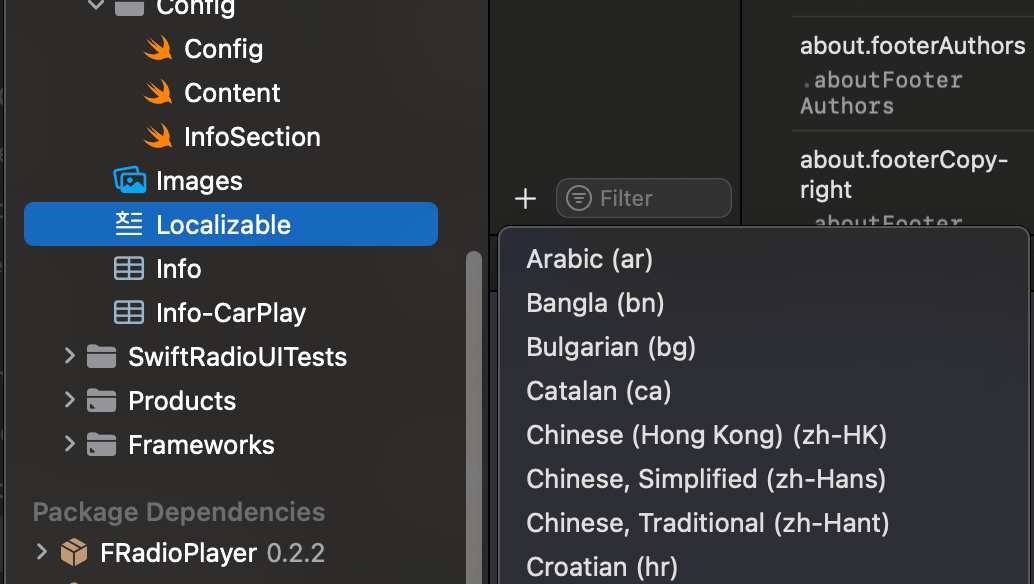
Adding Arabic from the language picker
Return to Localizable.xcstrings, select the new language, and enter the translations. The screenshots show English and Arabic side by side; the editor's layout can differ between Xcode versions.
You can also add a language from the String Catalog's sidebar in newer Xcode versions. Apple's String Catalog guide covers that workflow.
You can translate a few entries at a time and build to check them. Fill in the remaining entries before publishing that localization.
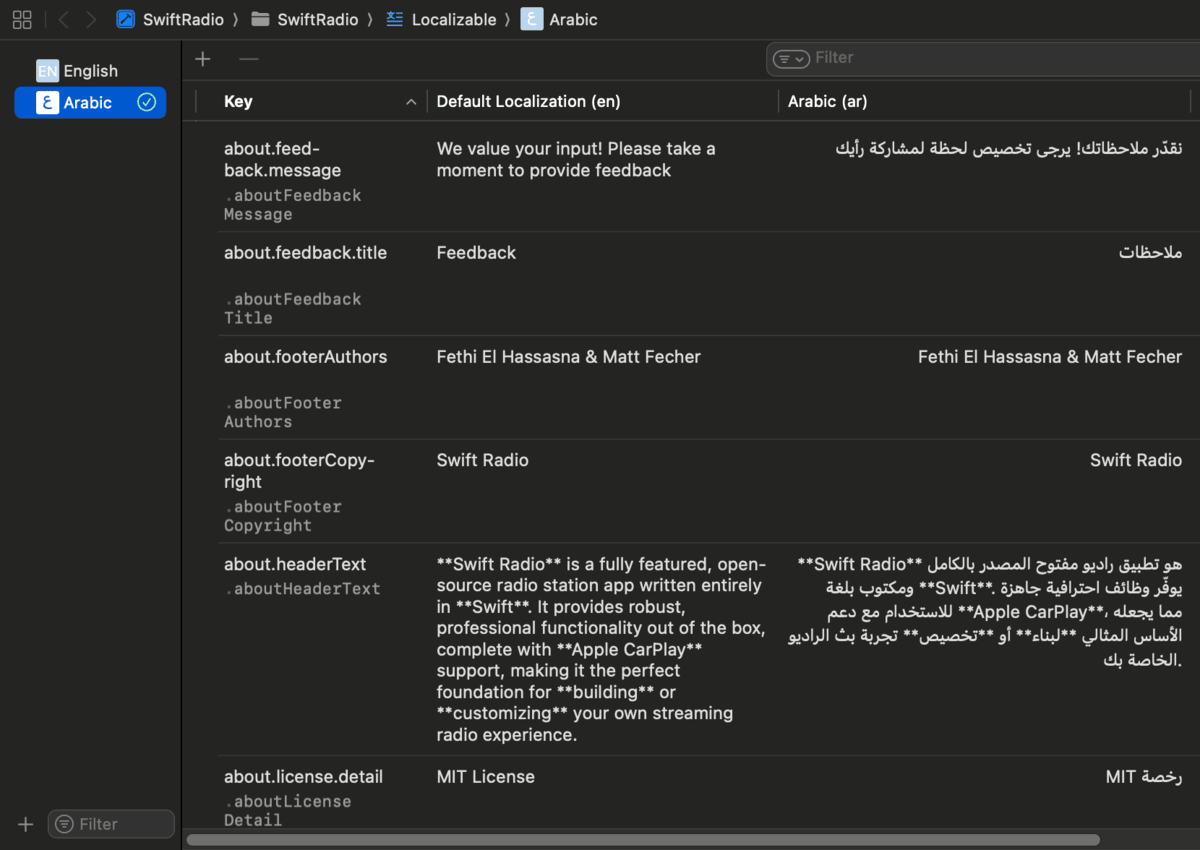
English and Arabic side by side in the String Catalog
Testing the translation
Go to Product > Scheme > Edit Scheme > Run > Options and set App Language to the language you want to preview. Build and run. You can test the translation without changing the language of your device.
Check the station list, player menus, and About screen. Longer translations can expose cramped labels. For Arabic, check the right-to-left layout as well as the words.
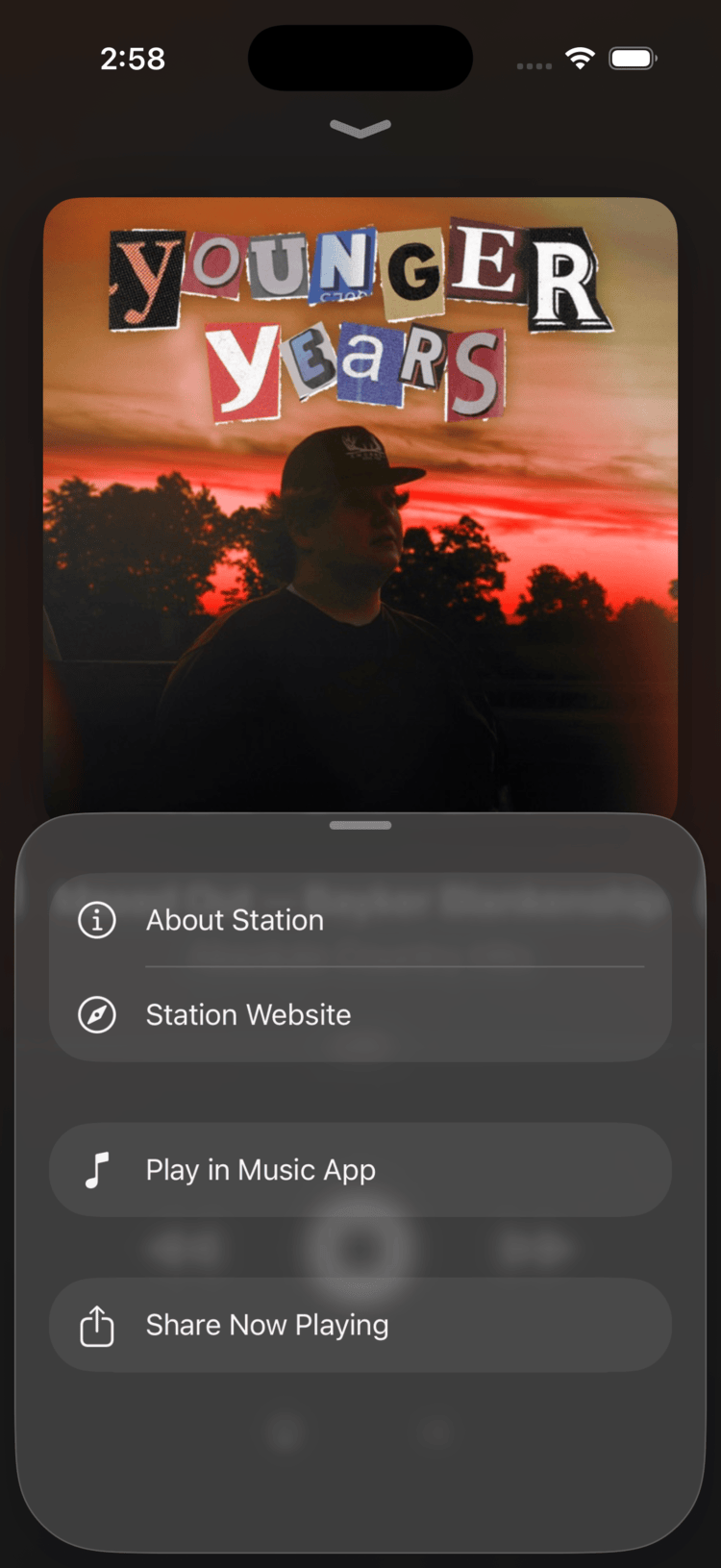
English
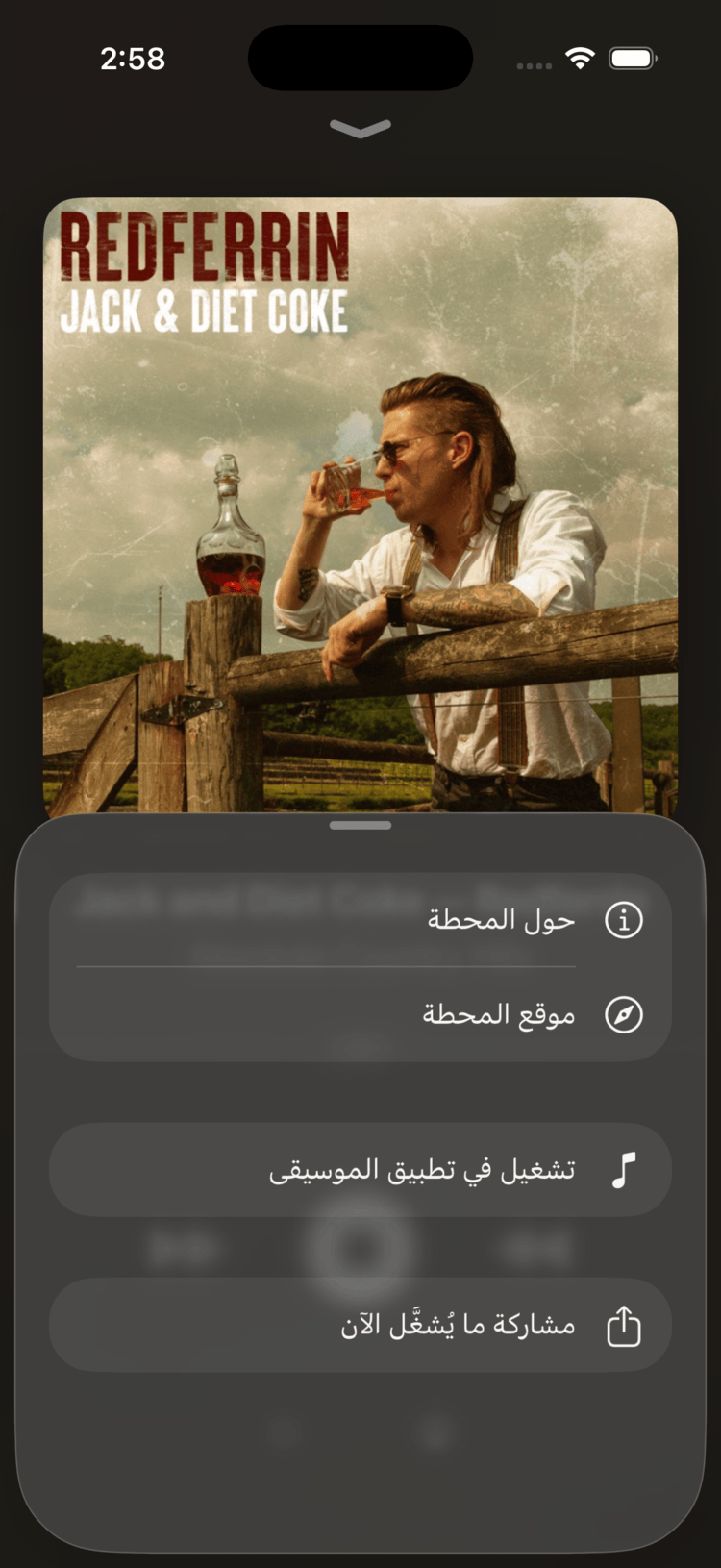
Arabic (RTL)
Customizing links and contact info
Open SwiftRadio/Config/Config.swift and find the contact settings. Replace the project's values with your own, for example:
static let website = "https://yourwebsite.com"
static let email = "hello@yourwebsite.com"
static let emailSubject = "From \(Bundle.main.appName) App"
static let feedbackURL = "https://yourwebsite.com/contact"
static let licenseURL = "https://yourwebsite.com/licenses"
These values are shared across languages. After changing them, try the links and email action in the app too.
If you find interface text that you can't translate through the catalog, open an issue with the screen and text. I'd like to keep that work in one place.