
Add CarPlay support to SwiftRadio [archived]
Archived guide: This article describes the older
MPPlayableContentManagerintegration. The code and screenshots belong to that version of Swift Radio. For the scene-based setup used by the current project, read Adding CarPlay support to Swift Radio (iOS 14+).
The first CarPlay integration in Swift Radio used MPPlayableContentManager. The app supplied a tree of stations and responded to playback requests; CarPlay built the browsing interface from that data.
This guide walks through that setup: enabling the simulator display, exposing the station list, and keeping the selected station in sync. It remains here for anyone maintaining a fork that uses the older API.
Setting up the project
-
Start with a Swift Radio checkout that still uses
MPPlayableContentManager. The project lives in this repository:git clone https://github.com/analogcode/Swift-Radio-ProThe default branch now uses CarPlay scenes. These examples are for an older checkout or an existing fork with the playable-content integration.
-
Run the app in the iOS Simulator. In the version shown here, the CarPlay display is under Hardware > External Displays > CarPlay.
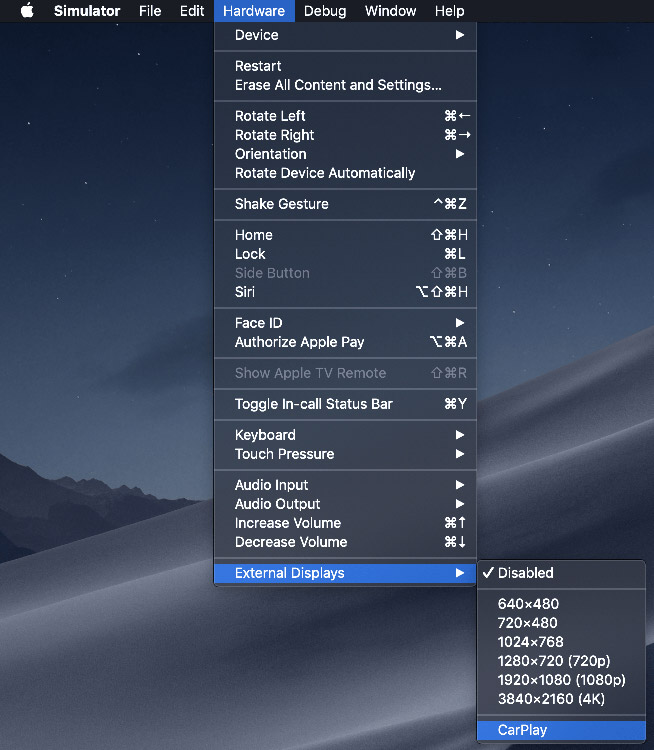
Older Simulator versions could expose the menu with this setting:
defaults write com.apple.iphonesimulator CarPlay -bool YES -
Add the CarPlay entitlement so iOS will expose playable content.
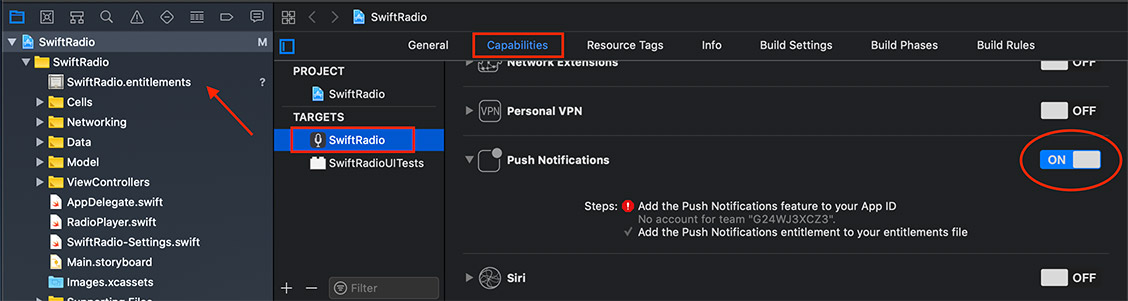
In the Xcode version shown here, toggling a capability such as Push Notifications created the
SwiftRadio.entitlementsfile. The CarPlay key then had to be added manually:com.apple.developer.playable-content = YES. Push Notifications itself isn't needed for this integration.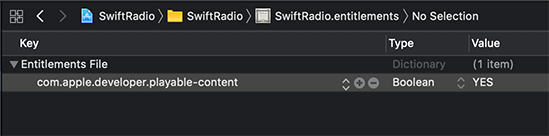
-
Relaunch the app. You should now see the CarPlay shell.
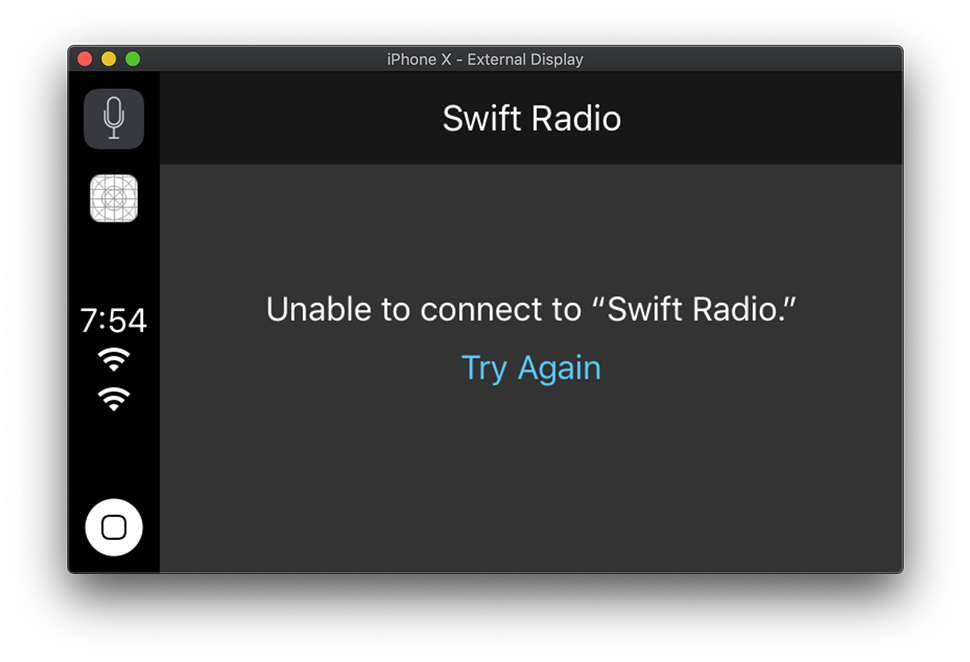
Create the content manager
Start by declaring a shared MPPlayableContentManager on the app delegate:
// AppDelegate.swift
import UIKit
import MediaPlayer
import FRadioPlayer

@UIApplicationMain
class AppDelegate: UIResponder, UIApplicationDelegate {
  var window: UIWindow?

  // CarPlay
  var playableContentManager: MPPlayableContentManager?

  // ...
}
Supply stations and handle playback
Keep CarPlay logic in an extension so it stays out of the main app bootstrap:
// AppDelegate+CarPlay.swift
import Foundation
import MediaPlayer

extension AppDelegate {
  func setupCarPlay() {
    playableContentManager = MPPlayableContentManager.shared()

    playableContentManager?.delegate = self
    playableContentManager?.dataSource = self

    StationsManager.shared.addObserver(self)
  }
}
The playback delegate receives an index path when a listener selects a row. Use it to find the station, select it through StationsManager, and report completion:
// AppDelegate+CarPlay.swift
extension AppDelegate: MPPlayableContentDelegate {
  func playableContentManager(
    _ contentManager: MPPlayableContentManager,
    initiatePlaybackOfContentItemAt indexPath: IndexPath,
    completionHandler: @escaping (Error?) -> Void
  ) {
    DispatchQueue.main.async {
      if indexPath.count == 2 {
        let station = StationsManager.shared.stations[indexPath[1]]
        StationsManager.shared.set(station: station)
        contentManager.nowPlayingIdentifiers = [station.name]
      }

      completionHandler(nil)
    }
  }

  func beginLoadingChildItems(
    at indexPath: IndexPath,
    completionHandler: @escaping (Error?) -> Void
  ) {
    StationsManager.shared.fetch {
      completionHandler(nil)
    }
  }
}
The data source describes two levels: a Stations container at the root, then one playable item per station. CarPlay uses the item's identifier to track what is playing.
// AppDelegate+CarPlay.swift
extension AppDelegate: MPPlayableContentDataSource {
  func numberOfChildItems(at indexPath: IndexPath) -> Int {
    if indexPath.count == 0 {
      return 1
    }

    return StationsManager.shared.stations.count
  }

  func contentItem(at indexPath: IndexPath) -> MPContentItem? {
    if indexPath.count == 1 {
      let item = MPContentItem(identifier: "Stations")
      item.title = "Stations"
      item.isContainer = true
      item.isPlayable = false
      return item
    }

    guard
      indexPath.count == 2,
      indexPath.item < StationsManager.shared.stations.count
    else {
      return nil
    }

    let station = StationsManager.shared.stations[indexPath.item]

    let item = MPContentItem(identifier: station.name)
    item.title = station.name
    item.subtitle = station.desc
    item.isPlayable = true
    item.isStreamingContent = true

    station.getImage { image in
      item.artwork = MPMediaItemArtwork(boundsSize: image.size) { _ in image }
    }

    return item
  }
}
The manager observer handles changes that originate elsewhere in the app. Reload the CarPlay list when stations arrive, and update nowPlayingIdentifiers when the selected station changes:
// AppDelegate+CarPlay.swift
extension AppDelegate: StationsManagerObserver {
  func stationsManager(
    _ manager: StationsManager,
    stationsDidUpdate stations: [RadioStation]
  ) {
    playableContentManager?.reloadData()
  }

  func stationsManager(
    _ manager: StationsManager,
    stationDidChange station: RadioStation?
  ) {
    guard let station else {
      playableContentManager?.nowPlayingIdentifiers = []
      return
    }

    playableContentManager?.nowPlayingIdentifiers = [station.name]
  }
}
Add UIBrowsableContentSupportsSectionedBrowsing = YES to Info.plist to enable sectioned browsing for this integration.

Run it in the Simulator
Register CarPlay when the app launches:
// AppDelegate.swift
func application(
  _ application: UIApplication,
  didFinishLaunchingWithOptions launchOptions: [UIApplication.LaunchOptionsKey: Any]?
) -> Bool {
  // ...
  setupCarPlay()
  return true
}
The CarPlay template now lists stations and highlights the active stream.
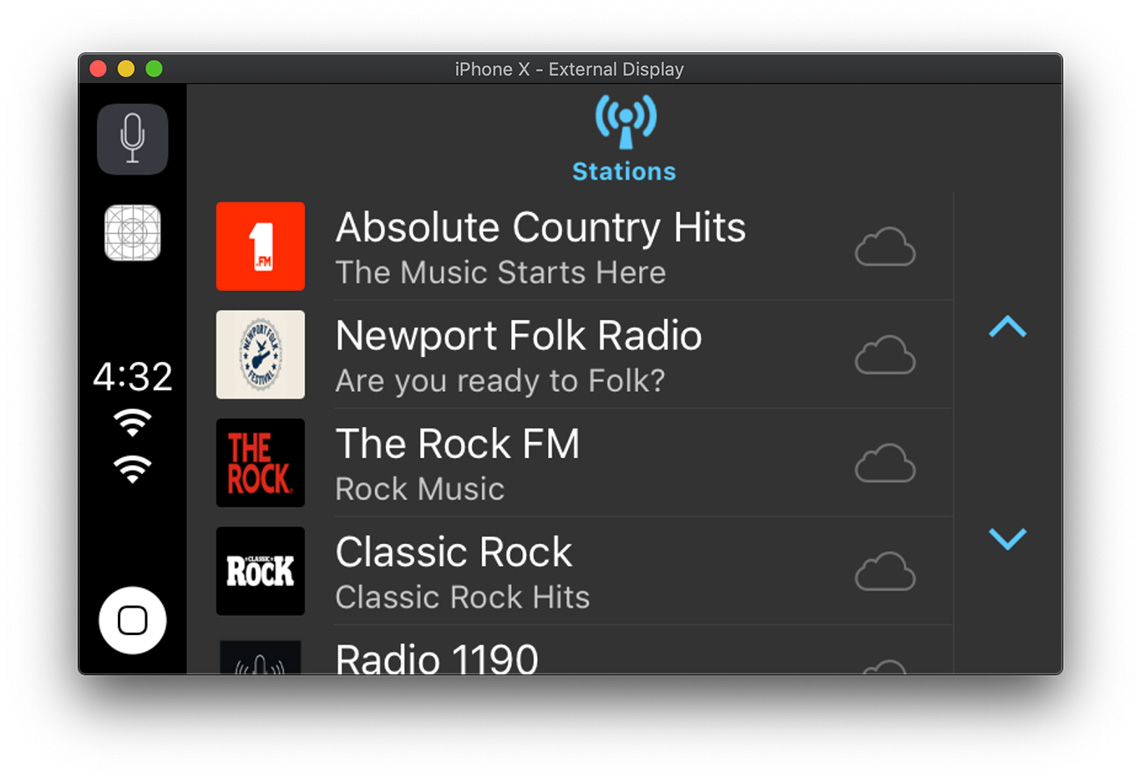
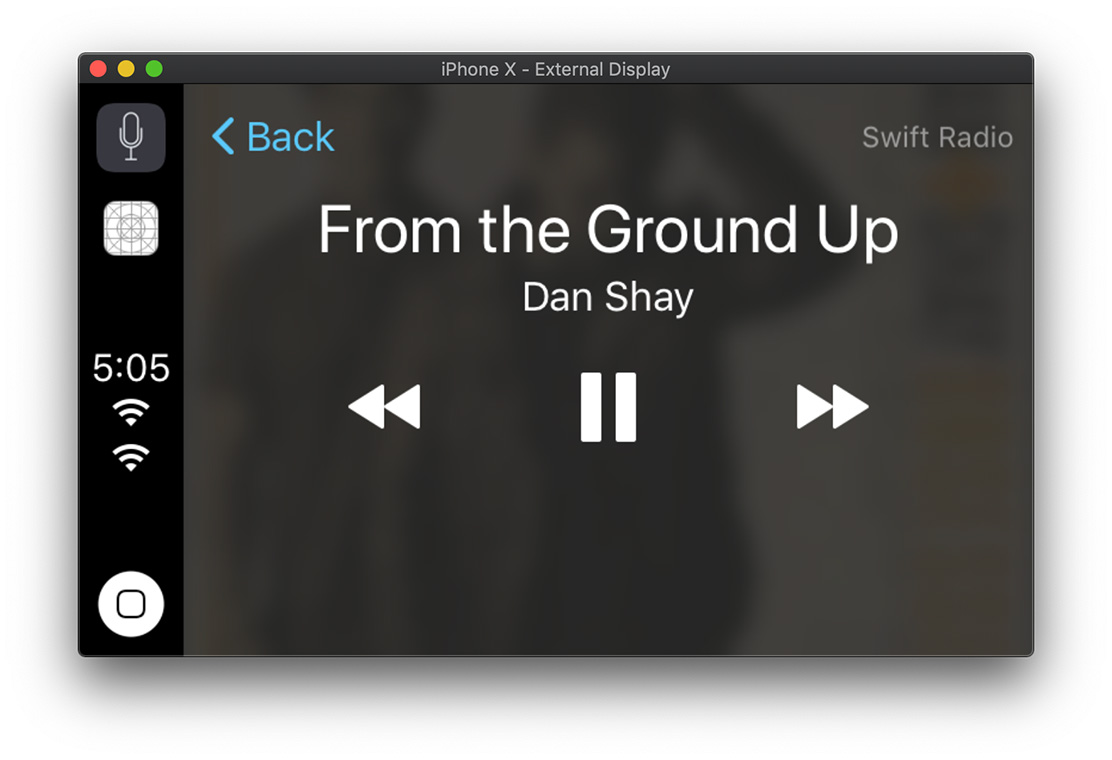
In the Simulator version used for this guide, the play/pause button could appear out of sync on first launch. Toggling playback once reset it.
Test on real hardware with CarPlay Simulator
-
Request the CarPlay entitlement from Apple using the CarPlay contact form. Once approved, generate a provisioning profile that includes it.
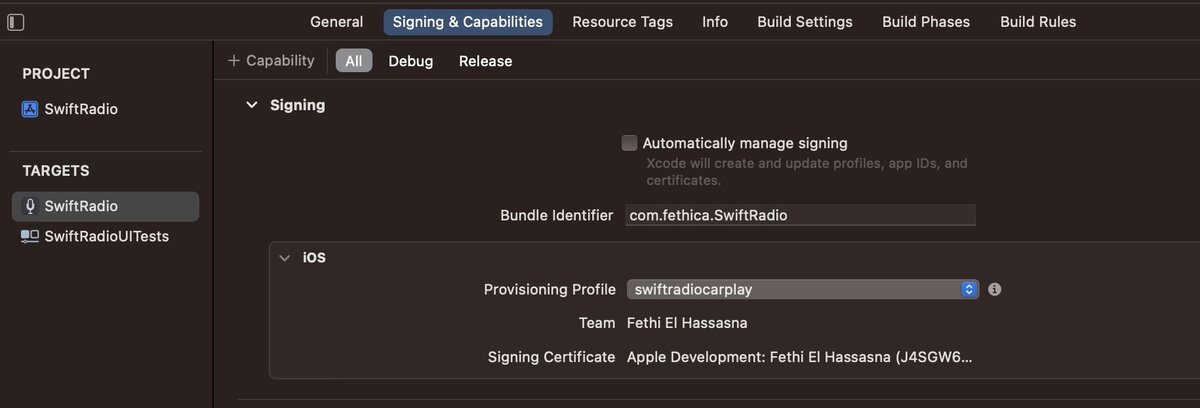
-
Download the Additional Tools for Xcode package from Apple’s developer downloads and launch the CarPlay Simulator app found in the
Hardwarefolder.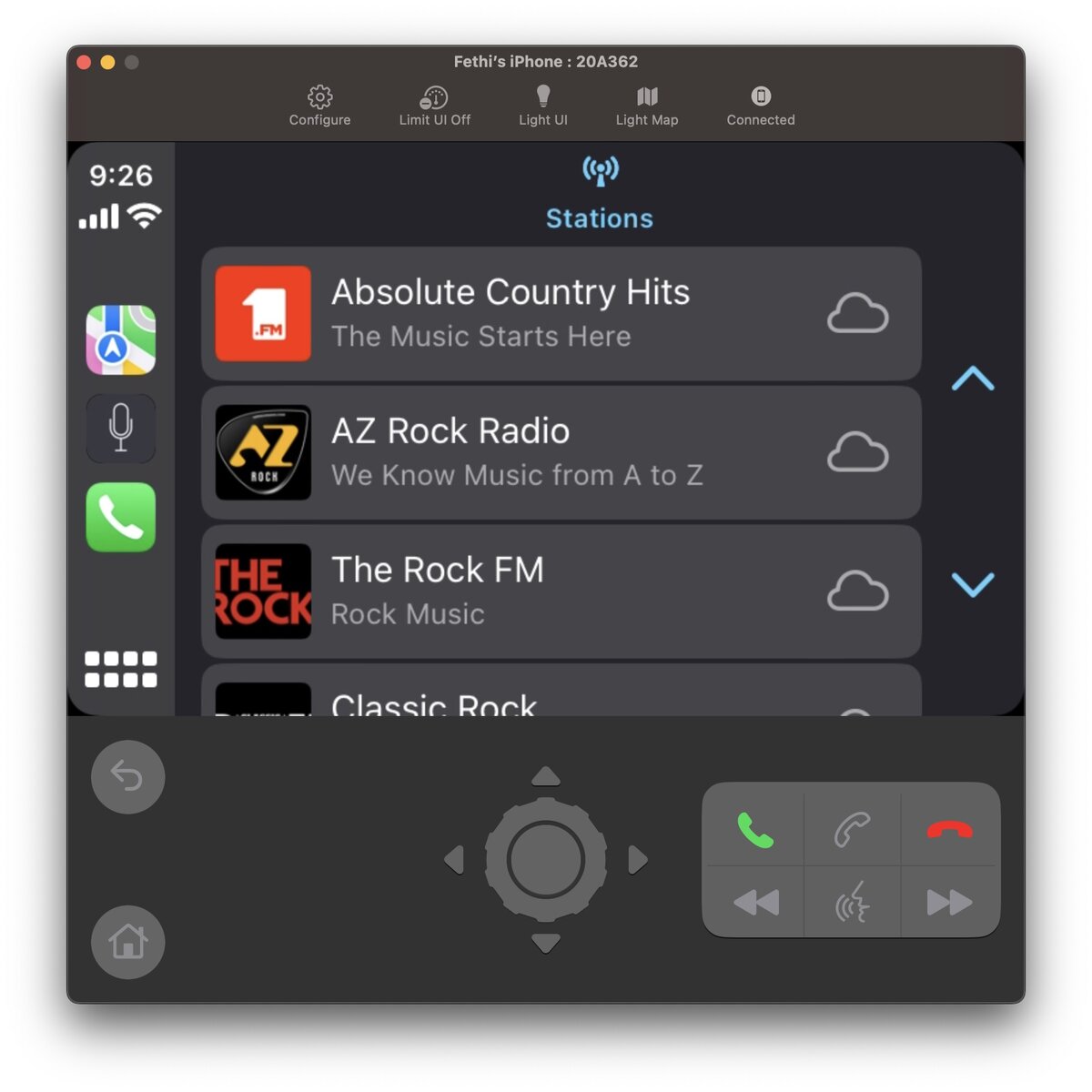
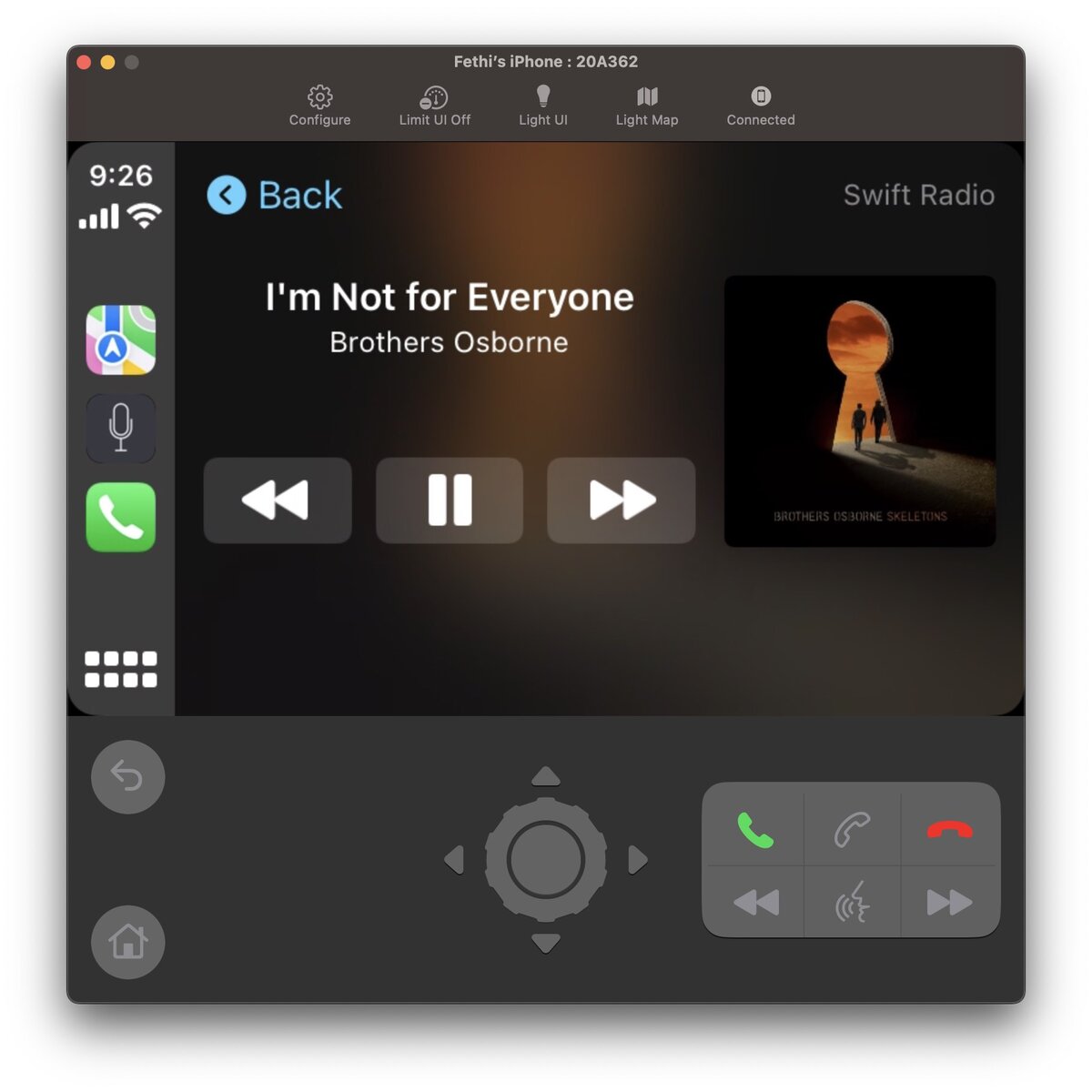
-
Connect your iPhone and run the CarPlay-enabled Swift Radio target. Check that selecting a station starts playback and that the now playing screen shows the selected station.
Resources
- Source: Swift Radio on GitHub.
- WWDC 2018: CarPlay Audio and Navigation Apps.
- WWDC 2017: Enabling Your App for CarPlay.
- Current integration: Adding CarPlay support to Swift Radio (iOS 14+).